
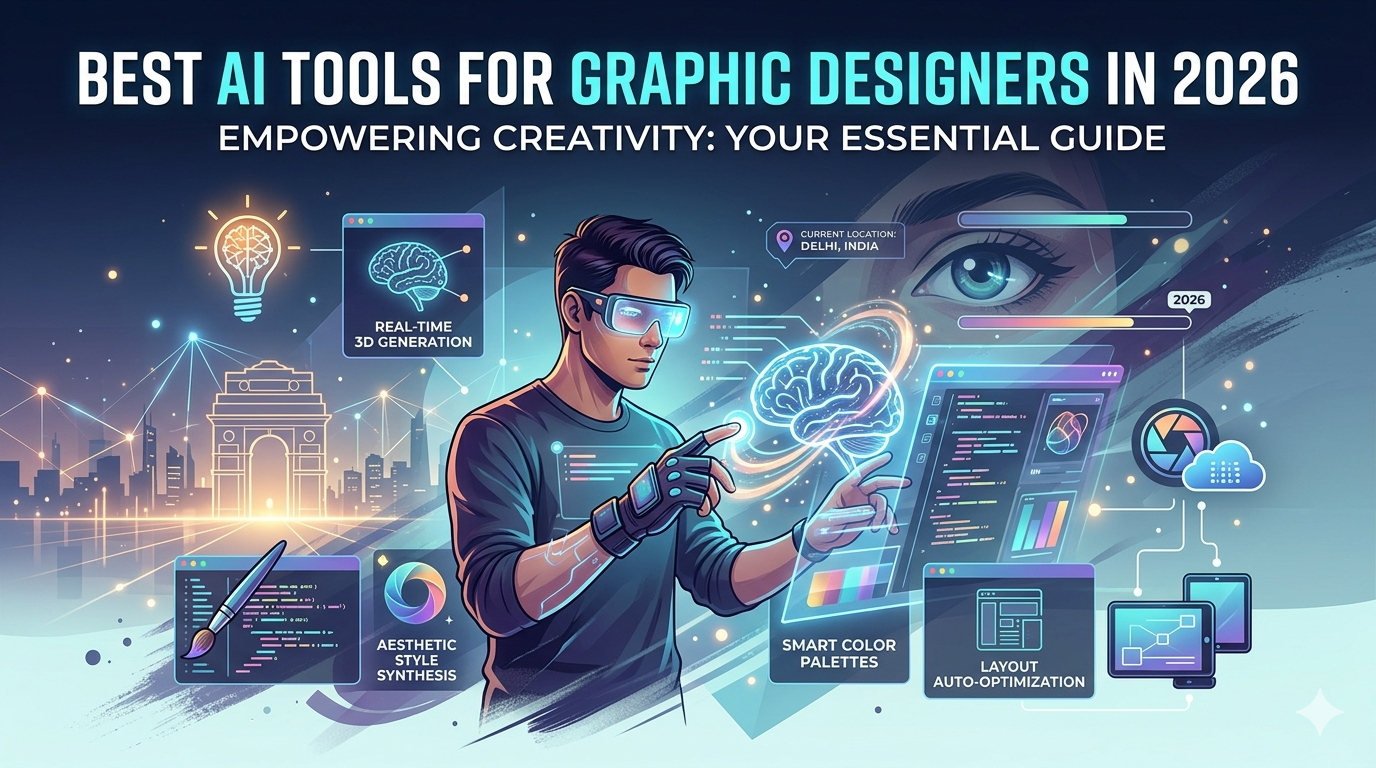
17 Apr Best AI Tools for Graphic Designers in 2026: 8 Picks That Actually Save Time
Remember when designing a social media graphic meant opening Photoshop, creating layers, adjusting curves, and spending 45 minutes on something that would be seen for two seconds?
Those days are fading.
AI hasn’t replaced graphic designers. It has freed them. Freed them from the tedious, repetitive, time-sucking tasks that consumed their days. Freed them to focus on what actually matters: creativity, concept, and client relationships.
In 2026, the best graphic designers aren’t the ones who know every Photoshop shortcut. They’re the ones who know which AI tool to use for which job, and how to blend AI output with human creativity.
Let me show you the 8 AI tools that every graphic designer should have in their toolkit. Each has a distinct purpose. No overlap. Just the best in their category.
1. Canva – Best for All-in-One Design (Non-Designers & Pros Alike)
Primary purpose: Complete design platform with AI features for creating social media graphics, presentations, documents, and videos.
Canva has evolved far beyond “beginner design tool.” In 2026, Canva Magic Studio is a legitimate AI powerhouse used by professional design teams worldwide.
Magic Design generates complete templates from text prompts. “Create a modern LinkedIn banner for a marketing agency.” Boom. 10 options. Magic Write generates copy directly inside your designs. Magic Expand fills out cropped images. Magic Edit removes unwanted objects. Magic Media generates images and video from text.
What makes Canva indispensable is the workflow. One tool does everything. No switching between Photoshop, Illustrator, and InDesign. No hunting for fonts or assets. Everything is in one place, with AI assistance at every step.
Best for: Social media graphics, presentations, email headers, flyers, posters, and any design where speed and iteration matter more than pixel-perfect precision.
Pricing: Free tier available. Pro: $12.99/month. Teams: $15/user/month.
Pro tip for designers: Upload your brand kit (logo, colors, fonts) and create shared templates for your team. Canva’s AI will apply your brand identity to every generated design automatically.
2. Nano Banana (Google) – Best for Photorealistic Product Images
Primary purpose: Generating and editing photorealistic product images with precise control over lighting, materials, and backgrounds.
Nano Banana (the nickname for Google’s latest Imagen-based image generation model) has quietly become the best tool for product and e-commerce design. Unlike other generators that produce artistic or dreamlike images, Nano Banana excels at photorealism.
What sets it apart is control. You can upload a reference image and say “change the background to a marble countertop, add morning sunlight from the left, make the product matte black instead of glossy.” It understands material properties, lighting direction, and spatial relationships.
For product designers, packaging designers, and e-commerce brands, this is revolutionary. No more expensive photoshoots for every variant. Generate them instead.
Best for: Product photography, packaging mockups, e-commerce imagery, and any design requiring realistic lighting and materials.
Pricing: Free with Google account. Higher resolution and volume via Gemini Advanced ($19.99/month).
Pro tip: Use the “inpainting” feature to edit specific parts of an image. “Change the label color from red to blue” while keeping everything else identical.
3. ChatGPT – Best for Design Briefs & Copywriting
Primary purpose: Writing design briefs, generating placeholder copy, brainstorming concepts, and creating design system documentation.
ChatGPT isn’t a design tool. But it’s an essential tool for designers. Because great design starts with a great brief, and ChatGPT is the best brief-writing assistant you’ll ever have.
Need a creative brief for a logo project? ChatGPT. Need 50 tagline options for a client to choose from? ChatGPT. Need to document your design system’s typography scale, color palette, and component library? ChatGPT. Need placeholder text that actually makes sense (not just lorem ipsum)? ChatGPT.
In 2026, ChatGPT-5 understands design terminology. You can ask for “a layout with strong visual hierarchy, asymmetrical balance, and a sans-serif headline” and it will produce copy that reflects those concepts.
Best for: Brief writing, copywriting, concept brainstorming, design documentation, client communication templates.
Pricing: Free tier available. Plus: $20/month. Pro: $200/month.
Pro tip: Create a custom GPT with your design process, portfolio examples, and client questionnaire. Use it to generate consistent briefs every time.
4. Gemini (Google) – Best for Image Generation with Text Integration
Primary purpose: Generating images directly within Google Docs, Slides, and Gmail without switching tools.
Gemini’s image generation (powered by Imagen 3) is excellent. But its superpower is integration. You can generate an image inside Google Slides while building a presentation. You can generate a header image inside Google Docs while writing a report. You can generate a product visual inside Gmail while drafting a campaign email.
No exporting. No re-uploading. No context switching. The image appears exactly where you need it.
For designers who live in Google Workspace (many agencies do), this is a massive time saver.
Best for: Quick visuals for presentations, reports, and emails. Generating placeholder images during the design process.
Pricing: Free with Google account. Higher resolution and volume via Gemini Advanced ($19.99/month).
Pro tip: Use the “upload reference image” feature to generate new images in the exact style of your existing brand assets.
5. LimeWire – Best for Commercial-Grade AI Image Generation
Primary purpose: High-quality, commercially-safe image generation with multiple AI models (Stable Diffusion, DALL-E, Flux) in one platform.
Yes, that LimeWire. The former music-sharing platform has reinvented itself as a premium AI image generation platform. And it’s surprisingly good.
LimeWire offers access to multiple AI models—Stable Diffusion 4, Flux Pro, DALL-E 4—in one interface. You pay per generation (like buying credits) rather than a subscription. This is perfect for designers who need occasional high-quality generations but don’t want another monthly fee.
More importantly, LimeWire focuses on commercial safety. All generated images come with clear usage rights. No legal ambiguity. No fear of copyright claims.
Best for: Commercial projects where usage rights matter. Designers who want access to multiple AI models without multiple subscriptions.
Pricing: Credit-based. Free tier available (watermarked). Paid credits start at $10 for 500 credits.
Pro tip: Use the “remix” feature to generate variations of your best images. Start with one strong prompt, generate 10 variations, pick the best, remix again.
6. Designer (Microsoft) – Best for Logo & Brand Identity Design
Primary purpose: AI-powered logo generation, brand kit creation, and consistent brand asset management.
Microsoft Designer (formerly Bing Image Creator) has evolved into a full brand identity tool. It doesn’t just generate logos. It generates complete brand kits: logos, color palettes, typography pairings, and social media templates that all work together.
Upload your logo concept. Designer generates 50+ variations. Then it suggests complementary colors, fonts, and layouts. Then it generates social media posts, business cards, and email headers using those brand elements.
For freelance designers, this is a productivity multiplier. You can deliver a complete brand identity in days instead of weeks. For in-house designers, it’s a consistency engine—everyone uses the same AI-generated brand assets.
Best for: Logo design, brand identity development, creating consistent brand assets across multiple formats.
Pricing: Free with Microsoft account. Premium features included with Copilot Pro ($20/month).
Pro tip: Use Designer to generate “client options” quickly. Show 10 logo variations, let the client choose a direction, then refine manually. Faster approvals = faster projects.
7. Freepik AI – Best for Stock Photo & Vector Generation
Primary purpose: Generating custom stock photos, vectors, and icons that don’t exist in traditional stock libraries.
Freepik has been the go-to source for free stock vectors and photos for years. Now their AI generator lets you create custom assets that you can’t find anywhere else.
Need a vector illustration of “a cat astronaut drinking chai on Mars”? Freepik AI will generate it. Need a stock photo of “diverse team collaborating in a futuristic office with plants”? Generated. Need an icon set for “sustainable energy” in a consistent style? Generated.
The generated assets are fully licensed for commercial use and available in vector formats (SVG, EPS) that you can edit in Illustrator. This is what sets Freepik apart—you’re not stuck with raster images. You get editable vectors.
Best for: Custom vectors, icons, illustrations, and stock-style photos that don’t exist in traditional libraries.
Pricing: Free tier (limited). Premium: $15-24/month.
Pro tip: Download generated assets as SVG and open in Illustrator. The vectors are clean and editable. Change colors, resize, modify elements—just like any vector you’d create manually.
8. Leonardo.ai – Best for Game Assets & Stylized Art
Primary purpose: Generating game assets, character designs, environment art, and stylized illustrations.
Leonardo.ai started as a tool for game developers. It remains the best option for generating assets with consistent art styles across multiple generations.
What makes Leonardo special is its “fine-tuned models.” You can train the AI on your own art style. Upload 20-30 examples of your work. Leonardo learns your style. Then it generates new assets that match your existing portfolio perfectly.
For illustrators, concept artists, and game designers, this is transformative. You can generate background elements, character variations, and environment props that look like you drew them—without drawing each one manually.
Best for: Game assets, character art, environment design, concept art, and any project requiring consistent stylized illustrations.
Pricing: Free tier available (150 credits/day). Paid plans start at $12/month.
Pro tip: Use Leonardo’s “Canvas” feature to generate outpainting—extending existing images beyond their original borders. Perfect for expanding concept art or creating wide-format assets.
Quick Comparison Table
| Tool | Best For | Pricing | Output Formats | |——|———-|———|—————-| | Canva | All-in-one design | Free / $13/mo | PNG, JPG, PDF, SVG, MP4 | | Nano Banana | Photorealistic products | Free / $20/mo | PNG, JPG | | ChatGPT | Design briefs & copy | Free / $20/mo | Text | | Gemini | Integrated image gen | Free / $20/mo | PNG, JPG | | LimeWire | Commercial-grade images | Credit-based | PNG, JPG | | Designer (MS) | Logo & brand identity | Free / $20/mo | PNG, JPG, PDF, SVG | | Freepik AI | Vectors & stock photos | Free / $15-24/mo | PNG, JPG, SVG, EPS | | Leonardo.ai | Game assets & stylized | Free / $12/mo | PNG, JPG |
How Designers Actually Use These Tools Together
These tools aren’t replacements for each other. They’re teammates. Here’s how a smart designer combines them.
For a logo project:
1. Use ChatGPT to write the creative brief and brainstorm concepts.
2. Use Microsoft Designer to generate 50+ logo variations quickly.
3. Refine the best concepts manually in your usual design software.
4. Use Canva to create brand guidelines and presentation materials.
5. Use Freepik AI to generate supporting vector assets (patterns, icons).
For a product packaging project:
1. Use Nano Banana to generate photorealistic product shots in different settings.
2. Use Leonardo.ai to create stylized illustrations for the packaging.
3. Use Canva to mock up the packaging design.
4. Use ChatGPT to write product descriptions and packaging copy.
For a social media campaign:
1. Use Gemini to generate quick images directly inside your presentation.
2. Use LimeWire for high-quality, commercial-safe hero images.
3. Use Canva to assemble final graphics with text and branding.
4. Use Freepik AI for custom icons and supporting visuals.
The best designers don’t rely on one tool. They build a toolkit. They know which tool is best for which job. And they switch seamlessly between them.
What About Traditional Design Software?
You might be wondering: where’s Photoshop? Illustrator? Figma? InDesign?
They’re not on this list because they’re not AI tools. They’re traditional design tools with AI features added. That’s different.
Photoshop now has Generative Fill and Generative Expand. Illustrator has Generative Recolor. Figma has AI features for design systems. These are powerful, and you should use them.
But this list focuses on standalone AI tools that solve specific problems. Use them alongside your traditional toolkit, not instead of it.
Common Mistakes Designers Make with AI
Learn from others’ errors.
Mistake 1: Using AI for everything. AI generates. Humans design. Use AI for speed, iteration, and inspiration. Use your brain for concept, composition, and client context.
Mistake 2: Not editing AI output. AI outputs are starting points, not final products. Edit, refine, and improve. Your human touch is what makes work excellent.
Mistake 3: Ignoring legal rights. Not all AI-generated images are safe for commercial use. Check terms. Use tools with clear commercial licenses (LimeWire, Freepik AI).
Mistake 4: Using the wrong tool for the job. Leonardo for product photos? Wrong. Nano Banana for game assets? Wrong. Learn which tool excels at which task.
Mistake 5: Not building a toolkit. One tool is never enough. The best designers use multiple tools, each for its strength.
Conclusion: AI Augments, Not Replaces
AI tools won’t replace graphic designers. Designers who use AI will replace designers who don’t.
The tools on this list handle the tedious, repetitive, time-consuming parts of design. They generate options. They remove backgrounds. They suggest layouts. They write copy. They create variations.
What they don’t do? Understand client context. Make strategic decisions. Build relationships. Feel emotion. Tell stories. That’s you.
Use these tools to work faster. Use your brain to work smarter. The combination is unstoppable.
Start with one tool—probably Canva or Leonardo.ai, depending on your work. Master it. Add another. Build your toolkit.
Your future as a designer isn’t threatened by AI. It’s amplified by it.
Frequently Asked Questions (FAQs)
1. Which AI tool is best for beginners who aren’t designers?
Canva. Hands down. The free tier gives you access to Magic Studio AI features. The interface is intuitive. You can create professional-looking graphics in minutes without any design training. Start there.
2. Can I use AI-generated images commercially?
It depends on the tool. Canva, Nano Banana (Gemini), LimeWire, Freepik AI, and Leonardo.ai allow commercial use with their paid tiers. Always check the terms of service. Some tools (especially free tiers) retain rights or add watermarks. When in doubt, pay for the commercial license.
3. Which tool is best for vector graphics?
Freepik AI generates vectors in SVG and EPS formats. Microsoft Designer also outputs SVG. Canva outputs SVG on paid plans. For pure vector generation, Freepik AI is the strongest option because the vectors are clean and editable in Illustrator.
4. Do I still need to learn traditional design software?
Yes. AI tools are powerful, but they’re not replacements for design fundamentals. You still need to understand typography, color theory, composition, and hierarchy. You still need to know how to use traditional tools (Photoshop, Illustrator, Figma) to refine AI output. AI is an amplifier, not a substitute for skill.
5. Which tool is best for generating consistent brand assets?
Microsoft Designer. It generates logos, color palettes, typography, and templates that all work together. For in-house teams, it’s the best option for maintaining brand consistency across multiple assets. Canva is a close second, especially if your team already uses Canva for daily work.
No Comments