Let me ask you something. Have you ever spent time crafting a prompt for an AI video tool, only to get a result that looks nothing like what you imagined?
If you're like most digital marketing professionals, the answer is: "Yes. It's frustrating." You have a vision in your head. You type it out. And the AI gives you something completely different.
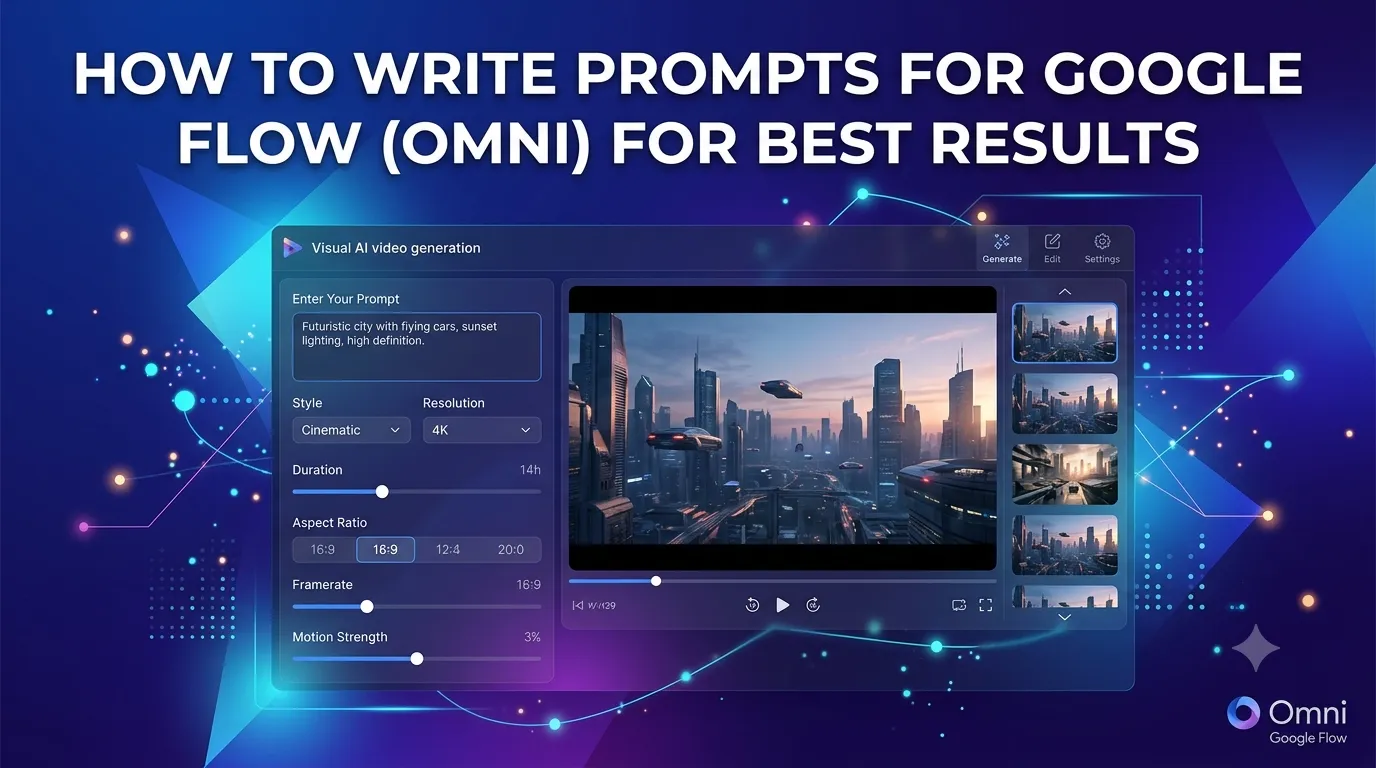
Here's the truth: AI video tools are powerful—but they need structured prompts. They don't read minds. They follow instructions. And the clearer your instructions, the better your results. In this guide, I'll show you exactly how to write prompts for Google Flow (Omni) for the best results—using a proven, structured approach.
Whether you're a digital marketing professional, a content creator, or a student taking a digital marketing course, this guide will transform how you work with AI video tools.
Let's dive in.
1. Why Structured Prompts Matter
AI video tools like Google Flow (Omni) are incredibly powerful. But they're also literal. They follow instructions exactly as you give them. Here's why structure matters.
1.1 AI Is Literal
AI doesn't understand nuance, implication, or subtlety. It understands instructions. If your prompt is vague, your result will be vague. If your prompt is structured, your result will be structured.
1.2 AI Follows Order
The order of your instructions matters. AI processes prompts sequentially. If you mention the background first, then the subject, then the motion, AI will prioritize accordingly. Structure your prompt in the order you want things to happen.
1.3 AI Needs Specifics
"A beautiful video" means nothing to AI. "A 10-second cinematic video of a 3D food model rotating on a wooden table with warm golden lighting" means everything. Specificity is key.
2. The Six Essential Elements of a Text-to-Video Prompt
Based on the structured approach from professional prompt guides, here are the six essential elements you should include in every text-to-video prompt—in this exact order.
2.1 Essential Details
Start with the basics. AI needs to know the duration, aspect ratio, style, and purpose of your video. This sets the stage for everything that follows.
- Duration: How long should the video be? (e.g., 10 seconds, 15 seconds)
- Aspect Ratio: What format? (9:16 for vertical/social media, 16:9 for landscape, 1:1 for square)
- Style: What visual style? (photorealistic, 3D hologram, cinematic, motion graphics, Pixar-style, etc.)
- Purpose: What's the video for? (product animation, advertisement, promotional, informative, brand reveal, etc.)
Example: "Cinematic 3D animated vertical video (9:16 aspect ratio). The video is a smooth, card-by-card vertical scroll—each food item gets its own full-screen premium menu card slide. There are 9 total slides."
2.2 Visual Description
Describe the overall video style and environment. This sets the visual tone and helps the AI understand the world it needs to create.
- Environment: Where does the video take place?
- Style: What visual approach are you using?
- Tone: What mood are you going for?
Example: "Each item is a 3D floating model in a tech background. Behind all cards—a softly blurred, warm Indian restaurant interior with hanging lanterns and bokeh lights."
2.3 Beats Division
Break your video into time segments or "beats." This helps the AI understand how the video should be structured and paced.
- Structure: 10 seconds divided into 5 beats of 2 seconds each, or 3-3-3-1, or 4-4-2, etc.
- Each beat: A distinct visual moment or scene.
Example: "10 seconds divided into 5 beats of 2 seconds each."
2.4 Item List
List all the items or elements that need to appear in the video. Be specific about what each item is.
Example: "Poha ₹50, Noodles ₹20, Rice ₹100, Samosa ₹60, and Gupchup ₹80"
2.5 Beat Visuals
For each beat, describe what the viewer should see. Keep it short but specific. Describe the visual action that happens in each segment.
Example: "Show a 3D model of Vada Pava in a holographic glass card with the text on the right side."
2.6 Audio, Transitions, and Elements
Describe any audio cues, transitions between scenes, and additional visual effects.
- Transitions: How do scenes change? (swipe, cut, fade, zoom, morph)
- Effects: What visual effects are applied? (particles, glow, rotation, scale)
- Audio: What sound accompanies the video?
Example: "Smooth vertical card swipe upward. Particle effect on transitions. Soft music in the background."
3. Image-to-Video Prompts
When using an image as a starting point, your prompt has two parts.
3.1 Lock the Image
First, tell the AI to use the exact image without changing any details.
Prompt: "Use this exact image without changing the details, colors, text, design, or visual elements."
3.2 Direct the Motion
Then describe how you want the image to animate.
Prompt: "Animate: camera slowly zooms from wide to close-up on the sneaker → sneaker rotates 15° left to right → soft light sweep passes across the surface → subtle dust particles drift upward."
4. Start and End Frame Prompts
When you have both a starting point and an ending point, your prompt has two parts.
4.1 Provide Both Frames
Upload your start frame and end frame. Describe each clearly.
Example: "Start frame: closed rosebud, dark garden, night. End frame: fully bloomed red rose, soft daylight."
4.2 Describe the Transition
Explain how you want the transition to happen. Be specific about timing and visual changes.
Example: "Transition: bud unfurls petal by petal over 4 seconds → background gradually brightens from night to day → camera stays static → no cuts, seamless morph."
5. Multiple Images Prompts
When uploading multiple images, use tags to reference each one.
5.1 Upload All Images
Add every image to the tool first.
5.2 Tag with @
Reference the images using @ to tag which image to use, and when.
Example: "@image1 is the person. @image2 is the jacket to put on them. @image3 is the background. Show @image1 wearing @image2, standing in @image3 → camera slowly pans left to right."
6. AI Avatar Prompts
For AI avatar videos, follow these three steps.
6.1 Lock the Avatar
Tell the AI to use the avatar as it is without changing anything.
Prompt: "Use the @ image as it is, maintaining the visuals and the facial details of the character without changing anything."
6.2 Script the Dialogue
Write the dialogue in a clear format.
Prompt: "Dialogue = 'Welcome to the Indo American Fair. Let's take a walk through it together.'"
6.3 Direct the Performance
Describe the body, face, and lip-sync animation.
Prompt: "Performance: female voice → natural lip-sync → natural, relaxed body movement throughout the line."
7. Video Edit Prompts
When editing an existing video, follow these two steps.
7.1 Upload the Video and Reference
Upload the video you want to edit, plus any reference images.
7.2 Lock the Reference
Tag the reference image and tell the AI to use it exactly as is.
Prompt: "Use @image1 as it is without changing its color, shape, texture, or design. Replace the existing sofa in the video with @image1 → keep camera movement, lighting, and all other room elements from the original video unchanged."
8. Common Mistakes to Avoid
Here are the most common mistakes people make when writing prompts.
8.1 Mistake #1: Being Vague
Wrong: "A beautiful video of food." Right: "A 10-second cinematic video of a 3D food model rotating on a wooden table with warm golden lighting and a blurred Indian restaurant background."
8.2 Mistake #2: No Structure
Wrong: "Make a video with a card and some food." Right: "Duration: 10 seconds. Aspect ratio: 9:16. Style: 3D hologram. Purpose: product animation. Beat 1: reveal card. Beat 2: rotate."
8.3 Mistake #3: Forgetting Transitions
Don't forget to describe how scenes connect. Transitions are crucial for professional-looking results.
8.4 Mistake #4: Not Testing and Iterating
AI prompts often need refinement. Don't expect perfection on the first try. Iterate and improve based on the results you get.
9. Conclusion: Master Your AI Prompts
Google Flow (Omni) and other AI video tools are incredibly powerful—but they need structured prompts to deliver great results. By following the six essential elements, using clear structures for image-to-video, start and end frames, multiple images, AI avatars, and video edits, you can get professional results every time.
But here's the good news: You can start today. Pick one prompt structure and try it. Experiment. Learn. The more you practice, the better your prompts will become.
The choice is yours. Keep getting mediocre results from vague prompts, or start mastering the art of structured prompting.
Join the best Digital Marketing Course to master AI-powered content creation and digital marketing in 2026.
Frequently Asked Questions (5 Unique FAQs)
❓ 1. Can I use the same prompt structure for all AI video tools?
Yes. The six-element structure works for most AI video tools. While different tools may have unique features, clear, structured prompts will generally get better results regardless of the platform.
❓ 2. Why is the order of elements important?
AI processes prompts sequentially. Starting with duration, aspect ratio, and style sets the foundation. Then describing visuals, beats, and transitions builds on that foundation. The order helps the AI understand your priorities.
❓ 3. How long should my prompt be?
A good prompt can be anywhere from 100 to 500 words. The key is to include enough detail without being redundant. Provide essential information for each element, and avoid adding irrelevant details.
❓ 4. What if the AI doesn't follow my prompt exactly?
AI isn't perfect. Sometimes you need to refine and iterate. Adjust your prompt, try again, and compare results. Over time, you'll learn what works best for your specific tools and use cases.
❓ 5. Should I use negative prompts?
Yes. Negative prompts tell the AI what not to include. This is extremely helpful for avoiding common AI artifacts or maintaining a consistent style. For example: "No floating food, no detached 3D, no flat 2D illustration."